How to Send Manual/Offline Certificates
Step 1: Navigate to Certificates
- Log in to your account.
- From the dashboard, select "Memberships" from the menu.
- Click on "Certificates" to access the certificate management area.
Step 2: Choose or Create a Certificate Template
- You have the option to select an existing certificate template or create a new one from scratch.
Step 3: Send the Certificate
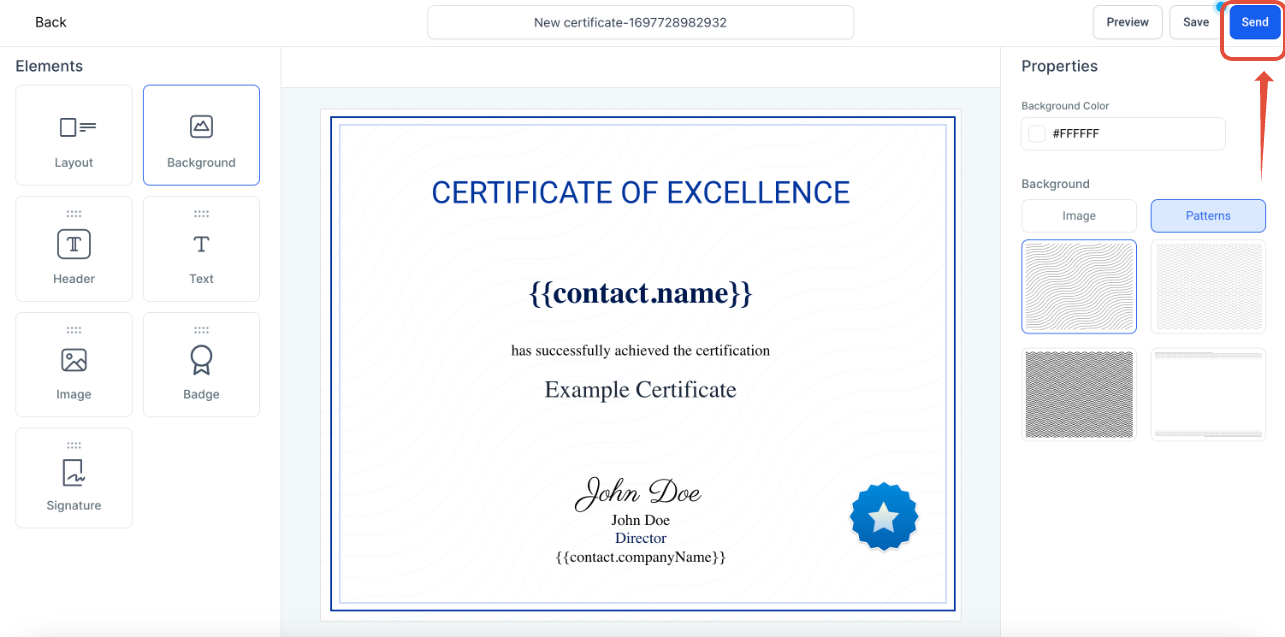
- Once you've chosen or created your certificate template, click on the "Send" button.
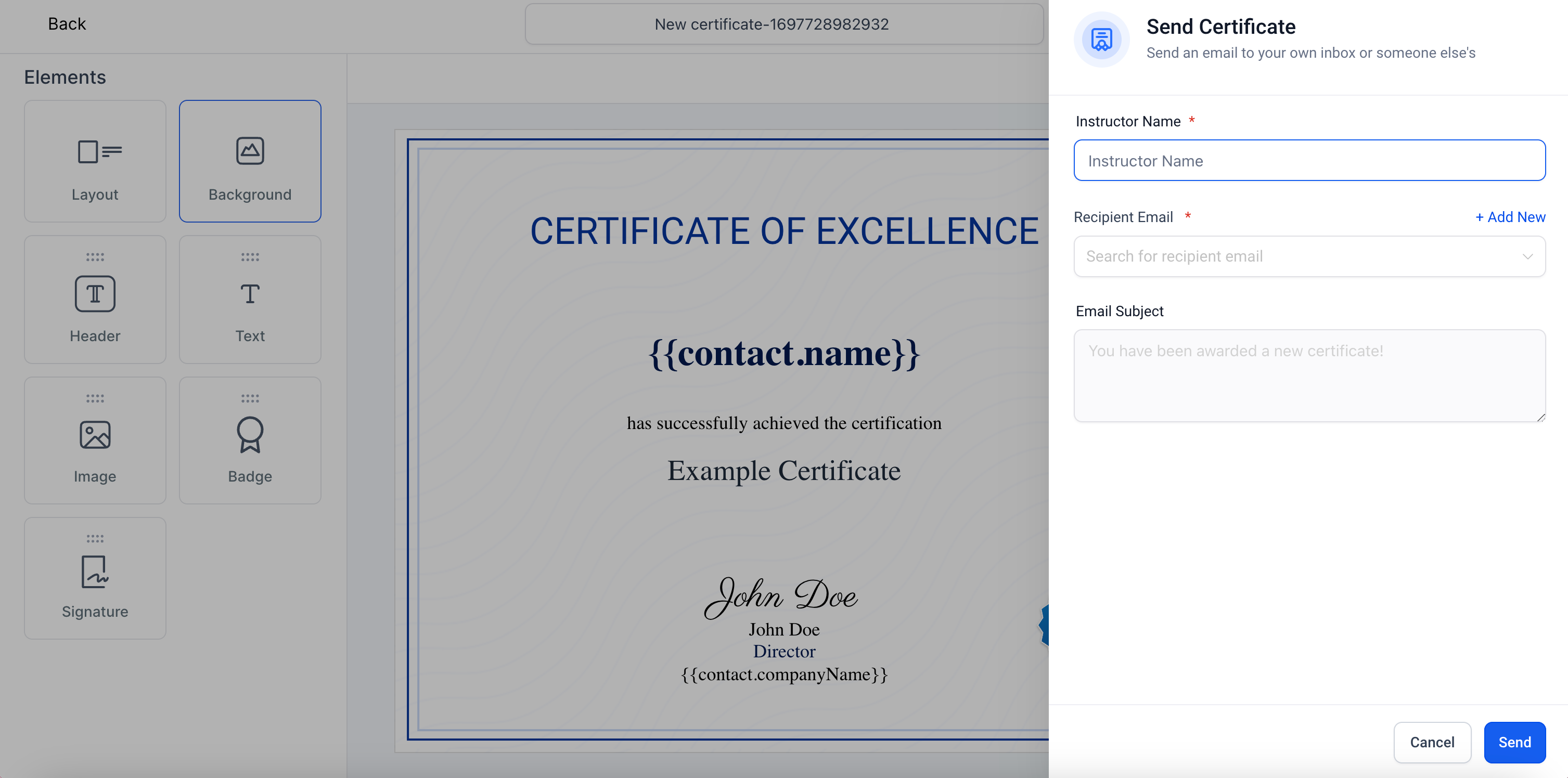
- You'll be prompted to fill in details such as the instructor's name and the recipient's email. If the recipient is not already a contact, you can add them by selecting "Add New".
- After entering the required information, click "Send".
 Step 4: Certificate Delivery
- An email will be dispatched to the learner containing a link to download their certificate in PDF format.
Step 5: Tracking Issued Certificates
- To view a record of all certificates you've sent, navigate back to "Memberships" > "Certificates" and select "Issued Certificates". This section provides a comprehensive list of all certificates issued, allowing for easy tracking and management.