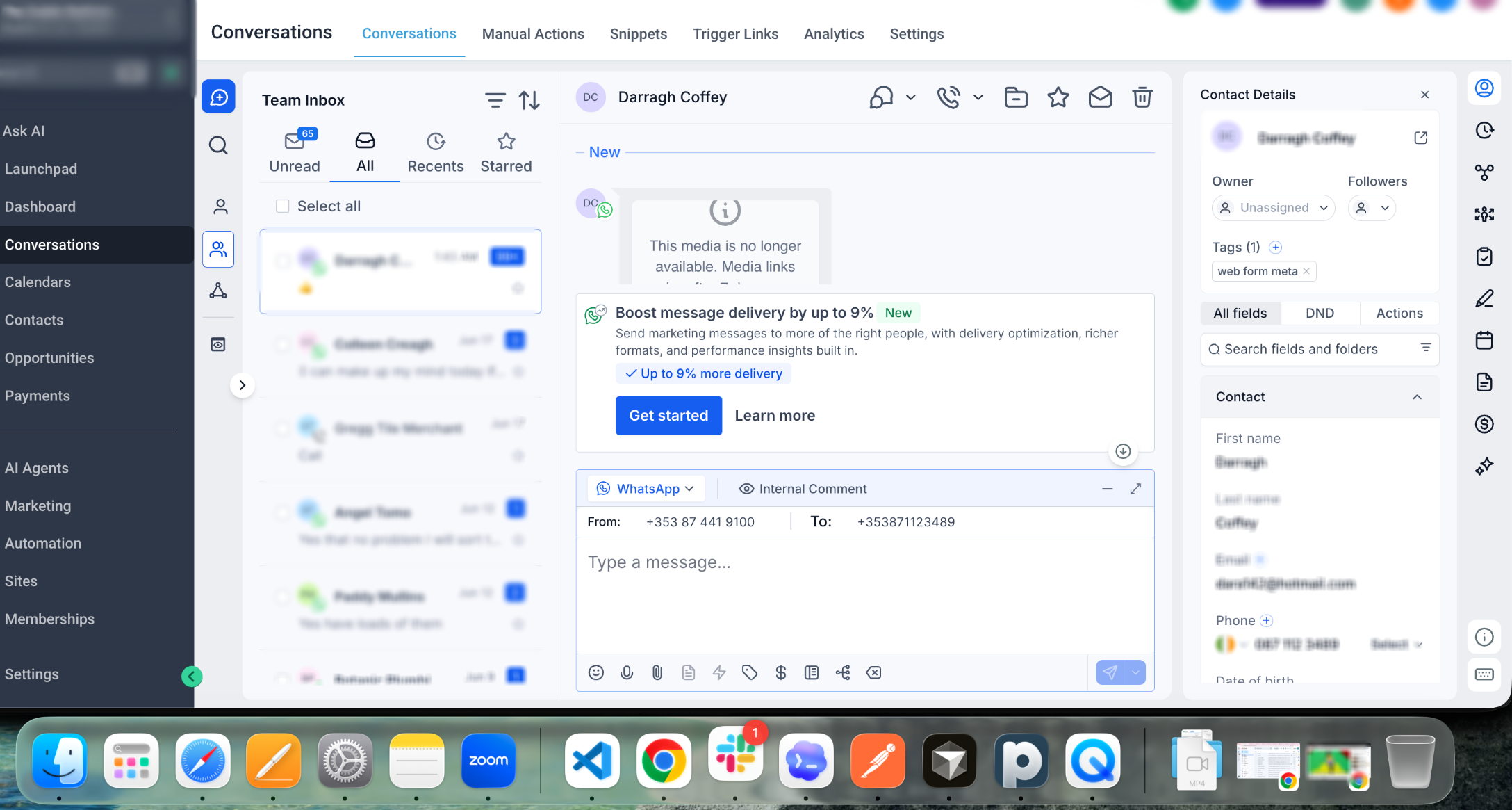
Eligible WhatsApp accounts may see an MMLite adoption banner directly inside Conversations. The banner provides a quick way to start the MMLite setup while managing WhatsApp messages and is designed to help improve messaging performance without disrupting normal conversation workflows.
TABLE OF CONTENTS
- What Is WhatsApp MMLite?
- About the MMLite Banner
- Who Can See the Banner?
- Why Switch to MMLite?
- How to Switch to MMLite
- What Happens to Existing Conversations?
- Frequently Asked Questions
- Need Help?
What Is WhatsApp MMLite?
WhatsApp MMLite is an updated messaging option available to eligible WhatsApp accounts. It is designed to provide a more optimized messaging experience and may improve delivery performance for supported WhatsApp messaging.
About the MMLite Banner
The MMLite adoption banner makes the upgrade easier to discover while you are already managing WhatsApp conversations.
For eligible accounts, the banner appears directly above the WhatsApp message composer in Conversations. A similar option may also be available from the WhatsApp Services area.
Who Can See the Banner?
The banner is shown only when the connected WhatsApp account is eligible for the MMLite experience.
If you do not see the banner, your current WhatsApp configuration may not yet be eligible. No action is required if the option is not available.
Why Switch to MMLite?
MMLite is intended to provide an improved WhatsApp messaging experience for eligible accounts.
- Delivery Optimization: May improve delivery performance for supported WhatsApp messages.
- Messaging Reliability: Supports a more optimized setup for customer communication.
- Easy Adoption: Start the setup directly from Conversations when the banner is available.
- Continued Improvements: Provides access to supported enhancements introduced through the newer
messaging experience.
How to Switch to MMLite
The adoption banner guides eligible users through the available setup steps without requiring them to leave their normal WhatsApp workflow.
- Open Conversations.
- Open a WhatsApp conversation.
- Locate the MMLite banner above the message composer.
- Select Get Started.
- Review the information displayed.
- Follow the on-screen steps to complete the available setup.
If the banner is also available in the WhatsApp Services area, you may start the same adoption process from there.
What Happens to Existing Conversations?
The adoption banner itself does not interrupt your current WhatsApp conversations. You can continue reviewing and managing existing conversation history while deciding whether to begin the MMLite setup.
Follow the on-screen instructions during the adoption process and review any displayed requirements before completing the change.
Frequently Asked Questions
Q: Why am I seeing the MMLite banner in Conversations?
Your connected WhatsApp account has been identified as eligible for the MMLite adoption experience.
Q: Where does the banner appear?
It appears above the WhatsApp message composer in Conversations. An adoption option may also appear in the WhatsApp Services area.
Q: Do I have to switch immediately?
Use the banner to review the available setup and follow the on-screen guidance when you are ready.
Q: Will MMLite guarantee better message delivery?
No. MMLite is intended to improve messaging performance, but individual message delivery can still depend on recipient, messaging, and WhatsApp conditions.
Q: Will the banner delete my existing WhatsApp conversations?
No. The banner itself does not delete existing conversation history.
Q: Why don't I see the banner?
The banner is limited to eligible WhatsApp accounts. If it does not appear, your current account or WhatsApp configuration may not yet be eligible.
Need Help?
If the MMLite banner is missing or the adoption process is not working as expected, first review the WhatsApp connection and account eligibility.
Verify that:
- You are working in the correct account.
- WhatsApp is connected and available in Conversations.
- You have opened a WhatsApp conversation before looking for the banner.
- The banner appears above the message composer for eligible accounts.
- You are not expecting the banner to appear for an account that is not currently eligible.
- The Get Started option opens the expected setup flow.
- Your browser has been refreshed if eligibility or WhatsApp settings recently changed.
- You have reviewed the WhatsApp Services area if the banner is not visible in Conversations.
If the banner appears but the setup cannot be completed, note the step where the process stops and any error message that appears.
If the issue continues, collect the affected WhatsApp number, whether the banner is visible, the step where the issue occurs, the date and time of the attempt, any displayed error message, and screenshots of the Conversations banner before contacting support.